
EasyTether Lets You Access the Internet Anywhere with an Android Phone
Using EasyTether
EasyTether can be found in the Android Market by searching for its name. Install and open the app to get started.Step 1) After opening the EasyTether app, select your computer’s operating system.

Step 2) You will then be prompted to download the client application that must be installed on your computer. Since you most likely don’t have internet access on your computer at this point, you can download the client through your phone, mount your phone as a USB drive on your computer, then run the installer.
If you do have internet access on your computer, you can visit this site to install the client software.

Step 3) Install the desktop software and accept the default settings. You may receive some driver security warnings during installation, which you need to accept. Make sure to run EasyTether on your computer after installation.

Step 4) After you’ve installed the desktop client, head back to your phone and check the box that says you’ve installed the desktop software. With your phone connected to your computer with a USB cable, you can now right click the EasyTether icon in your computer’s system tray and select Connect via Android.
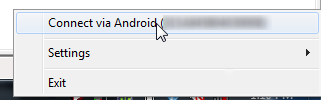
That’s it! You can now use your phone’s data connection on your computer. Please note that all of your carrier’s data usage policies still apply, so make sure to figure out what those are before sharing the connection. Also note that even if your carrier offers “Unlimited” data use, there is probably a limit of about 2GB – exceeding this will give you some huge fees.
You can download Easy tether via Pc from here:


0 comments:
Post a Comment